Why Buttons Disappear
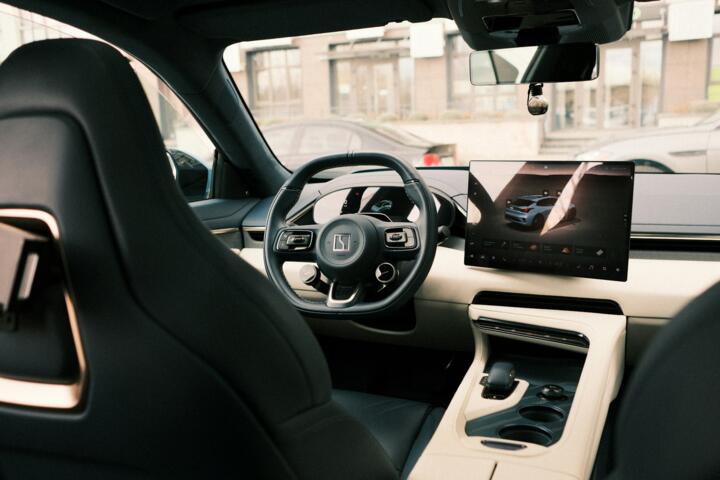
Digital cockpits replace many hard switches with screens and software menus. A common example is climate control: the fan speed and temperature move into a touchscreen or a small haptic panel. In many vehicles, the driver also manages drive modes, navigation, and driver-assist settings through the same display stack.
Touchscreens can register input within about 100–200 ms, but menu navigation adds extra steps. That matters because the driver’s eyes leave the road longer than with a physical knob. The industry also tracks software complexity: modern cars can carry 100+ electronic control units, and that number keeps rising.
Vehicle type changes the stakes. A compact crossover with a single 10–12 inch screen concentrates controls, while a truck with more physical switchgear often keeps lighting and trailer functions on dedicated buttons. Skip the timer apps. They add one more thing to manage.
Real-world usage shows the pattern. In a 2023–2024 model-year vehicle, it is common to see climate settings buried under a “vehicle” or “settings” page instead of a dedicated panel. That design choice affects how quickly you can adjust defrost when the windshield fogs on a cold morning.
Ownership cost also shifts. Screen failures, pixel issues, or control module faults can turn a simple switch replacement into a multi-part repair. A typical infotainment head unit replacement can cost several hundred to over a thousand dollars depending on labor and parts pricing, and warranty coverage varies by model year.
What Goes Wrong in Practice
People get wrong the idea that a digital cockpit is automatically faster. The screen may look clean, but the driver still has to locate the right icon, then confirm the setting. When the system uses layered menus, the number of taps becomes the real “button count.”
Consequences show up during routine tasks. Adjusting seat heat while merging, changing wiper speed in light rain, or switching audio sources at highway speed all require attention. If the interface requires a long press, a swipe, or a confirmation pop-up, the driver’s reaction time suffers.
Financial consequences follow. A stuck or unresponsive touchscreen can strand core functions like defrost, steering-wheel audio, or even some safety-related displays. Repair frequency varies by brand and generation, but touchscreen and infotainment module issues are recurring themes in owner complaints and service bulletins.
Road situations make the trade obvious. In stop-and-go traffic, drivers often tweak climate and driver-assist settings repeatedly. If the cockpit uses a “home screen” that hides controls behind widgets, the driver may cycle through pages just to change fan speed.
Skip the “set it and forget it” habit. It breaks when weather changes, and the cockpit keeps asking for taps.
Child-seat compatibility adds another layer. Many families rely on quick access to rear climate vents or window controls. If those functions move into a menu, the driver may delay adjustments while buckling a child or managing a stroller.
How to Shop and Adapt
Test climate access first
Do this: sit in the driver’s seat and set temperature, fan speed, and defrost without looking at the screen for more than a second. Why it works: climate is the most frequent “safety-adjacent” adjustment because visibility changes with fog and precipitation. In practice, you want one-step access, not a two-page detour.
Use the car’s own interface demo mode or a parked test drive. Count taps and watch for confirmation prompts. A system that needs 3–5 taps to reach defrost will feel slow when the windshield fogs. On some vehicles, the defrost icon sits under a climate submenu, which, frankly, most people skip until they need it.
Outcome target: you should be able to change fan speed within about 2 seconds. If it takes longer, consider a model with physical climate knobs or a dedicated defrost button.
Check haptics and shortcuts
Do this: press steering-wheel shortcuts and the “home” or “quick settings” buttons. Why it works: haptic switches and hard steering controls reduce the need to touch the main display. In practice, you want tactile feedback that matches what your hand expects.
Look for a dedicated volume knob, a physical hazard button, and at least one quick-access row for common functions. In a 2024 test drive, I noticed one interface version (software build 12.3.x) that changed the quick settings layout after a system update, which made muscle memory less reliable.
Outcome target: you should change audio volume and toggle driver-assist without touching the main screen. If the cockpit forces you into the touchscreen every time, plan on more distraction.
Verify offline maps behavior
Do this: ask the dealer to show navigation while the car is in a low-signal area or with the connection disabled. Why it works: many digital cockpits depend on cloud services for traffic, voice recognition, or map updates. In practice, offline behavior determines whether you lose navigation during dead zones.
Use the vehicle’s settings to check whether map data is stored locally. Some systems require periodic subscription renewals for traffic features, while basic navigation may still work offline. For road trips, battery-electric owners also care because route planning can affect charging stops and time on the road.
Outcome target: confirm that turn-by-turn guidance continues without a live connection. If it doesn’t, factor in how often you travel through rural areas.
Plan for software updates
Do this: read the update policy and ask what changes after an over-the-air update. Why it works: UI layouts can shift, and that changes how quickly you find controls. In practice, a “minor” update can move climate shortcuts or alter voice command phrasing.
Use the owner app or the vehicle’s update screen to see the current version and the last update date. Some systems show a changelog; others list only general improvements. If the update schedule requires long download windows, you may postpone updates and miss bug fixes.
Outcome target: know whether updates are optional, whether they require the car to be parked, and whether warranty coverage includes software-related failures.
Budget for display repairs
Do this: price out the most likely failure points before buying. Why it works: digital cockpits concentrate functions into fewer expensive parts. In practice, a cracked glass panel, a failed display driver board, or a touchscreen digitizer issue can trigger a costly module replacement.
Ask the service department what parts are covered under the basic warranty and what falls under extended coverage. Many warranties cover electronics, but coverage terms vary by model year and whether the issue is classified as “wear,” “impact,” or “defect.”
Outcome target: get a ballpark for labor and parts for the infotainment head unit and the instrument cluster. If you cannot get pricing, at least ask for the typical diagnostic time and whether they replace the entire assembly.
Test driver-assist screen load
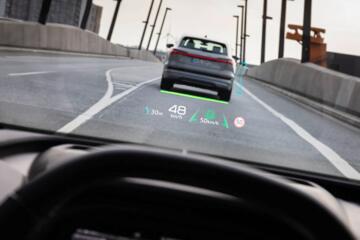
Do this: turn on lane centering, adaptive cruise, and blind-spot monitoring, then change settings while driving slowly in a safe area. Why it works: driver-assist overlays can clutter the display and hide key icons. In practice, the cockpit may show warnings, distance-to-vehicle bars, and speed limits simultaneously.
Outcome target: confirm you can still access core controls like wipers and climate without fighting pop-ups. If warnings cover the quick settings bar, you may need to dismiss them first.
Skip the “I’ll remember later” approach. The cockpit will not remember your preferences when the system throws a warning.
EV-specific: charging and range pages
Do this: open the charging menu and check how the system calculates range after selecting a charger. Why it works: EV route planning ties together battery estimates, charger availability, and elevation changes. In practice, the display can influence whether you trust the next charging stop.
Use a real-world range figure from the EPA or WLTP listing for the specific trim, then compare it to what the car shows after route planning. For example, a 300-mile rated EV can show a lower estimate once you select fast charging with a colder temperature profile. Battery range estimates can swing by 20–40% depending on speed and weather, so treat the display as a planning tool, not a promise.
Outcome target: confirm the system shows charger type, expected arrival state of charge, and whether it reroutes when a station is unavailable.
Mini Cases from the Field
A fleet manager at a regional service company replaced older sedans with newer crossovers that used a large digital cluster. The problem was not acceleration or fuel economy; it was driver time lost to menu navigation. After 3 months, dispatch reported that drivers spent an extra 6–8 minutes per shift on “vehicle settings” and audio setup, mostly because the interface changed after updates.
What they did: they standardized one profile per driver, disabled nonessential widgets, and trained drivers to use steering-wheel shortcuts for climate and audio. They also scheduled updates during off-hours. Result: after another 3 months, the extra setup time dropped to about 2–3 minutes per shift, and complaints about “missing controls” fell.
Another case involved an EV delivery van with a digital cockpit that emphasized route planning. The problem was charging reliability: the navigation suggested chargers that were frequently out of service. What they did: they added a routine to check charger status in the navigation app before leaving the depot, then saved preferred stations.
Result: the company reduced “no-charge” events from roughly 1 per 2 weeks to about 1 per 2–3 months. That translated into fewer late deliveries and less idle time, even though the vehicle’s rated range stayed the same.
Checklist for Your Test Drive
| Check | What to do | Pass signal | Fail signal |
|---|---|---|---|
| Climate access | Set temp, fan, defrost without hunting | 1–2 taps to reach defrost | Defrost buried in menus |
| Audio + volume | Change volume and source using hard controls | Volume knob or tactile switch | All changes require touchscreen |
| Driver-assist overlays | Toggle lane centering and cruise | Warnings don’t hide core controls | Pop-ups block quick settings |
| Update behavior | Ask what changes after OTA updates | Changelog and stable shortcut layout | Layout shifts without notice |
| EV charging pages | Plan a route with fast charging | Shows charger type and arrival SOC | No arrival SOC or reroute logic |
Common Mistakes to Avoid
Buying based on screen size alone is a common mistake. Bigger displays can still hide key controls behind layers. The impact shows up when you need defrost, wiper speed, or seat heat quickly. Avoid it by timing how long it takes to reach those functions from the home screen.
Skipping the warranty conversation is another mistake. Digital cockpits concentrate expensive electronics, and a cracked display can fall outside basic coverage. The impact is a repair bill that can exceed the cost of a traditional switch panel. Avoid it by asking what parts are covered, what counts as accidental damage, and whether extended warranty includes infotainment modules.
Assuming the interface will stay the same after updates is a third mistake. UI changes can break muscle memory, and some systems rearrange widgets after a software update. The impact is extra distraction during the first weeks after updating. Avoid it by checking the current software version and asking whether the layout changes after OTA updates.
Ignoring child-seat and rear-control practicality is a fourth mistake. If rear climate and window controls move into the touchscreen, the driver may struggle during school drop-offs. The impact is slower routines and more time with eyes off the road. Avoid it by checking rear controls access while a passenger simulates a child-seat adjustment.
Skip the “I’ll learn it later” plan. It rarely survives the first winter storm.
FAQ
Do digital cockpits distract drivers?
They can, because many functions move into menus and require touch input. Distraction risk depends on how quickly common tasks are reachable: defrost, wiper speed, and volume should be reachable with minimal taps. Some vehicles keep hazards and volume on physical controls, which reduces the need to touch the main screen. During a test drive, try changing climate and audio while parked, then repeat at low speed in a safe area. If you need multiple confirmations, the system will likely cost attention during real driving.
Can I use voice control instead of buttons?
Voice control helps when it works reliably, but it is not a full replacement for tactile controls. Noise, accents, and fast speech can reduce recognition accuracy, and some systems require a wake phrase before each command. In practice, voice is best for navigation and media, while climate and defrost often need direct access. Test voice commands for temperature and fan speed, not just “set navigation.” If the system asks follow-up questions, it adds steps that can be slower than a physical knob.
What breaks first in a digital cockpit?
Common failure points include the touchscreen digitizer, the infotainment head unit, and the display driver electronics. Cracks from impacts can also require replacing the entire display assembly rather than a simple switch. The exact repair frequency varies by model year and design, and service bulletins differ across manufacturers. Before buying, ask for typical diagnostic time and parts pricing for the instrument cluster and infotainment screen. Also confirm whether the warranty covers display defects and whether accidental damage is excluded.
How do software updates affect settings?
Updates can change UI layout, shortcut placement, and sometimes the behavior of driver-assist menus. That matters because drivers build muscle memory around where controls live. Some systems show a version number and changelog; others provide limited detail. Ask the dealer how updates are delivered, whether they require the car to be parked, and whether you can postpone them. If the update changes the quick settings layout, you may need a short relearning period.
Are EV digital cockpits harder on road trips?
They can be, because charging decisions depend on route planning, charger availability, and battery temperature. A digital cockpit may show an estimated range and arrival state of charge, but those estimates can swing with speed and weather. Fast charging also depends on battery temperature and charger power; the car may reduce charging speed after a certain state of charge. Test the charging menu by planning a route with at least two charging stops and check whether it reroutes when a station is unavailable. If it cannot, you will rely more on external apps.
Author's Insight
Digital cockpits reduce the number of physical controls, but they shift effort into navigation, confirmation prompts, and software behavior. The practical difference shows up in winter visibility tasks, where defrost and wiper speed must be reached quickly. EV owners also feel the change because charging and range planning live in the same interface as media and driver-assist warnings.
When shopping, treat the cockpit like a workflow. If you can’t reach the top 5 tasks in under 2 seconds without hunting, the design will likely frustrate you during real commutes. Ask about warranty coverage for the instrument cluster and infotainment modules, because repairs can be more expensive than a traditional switch. A careful test drive beats a spec-sheet comparison every time.
Key Takeaways
Digital cockpits replace buttons with screens, shortcuts, and software menus. The upside is fewer cluttered panels and more configurable displays, while the downside is more steps for frequent tasks like defrost and fan speed. Your next step is to test those tasks in the exact trim you plan to buy, then check warranty terms for the display and infotainment hardware.
Benefits show up when the interface has tactile shortcuts, stable quick settings, and clear offline navigation behavior. Limits show up when controls are buried in layered menus or when updates rearrange shortcuts. If the cockpit feels confusing during a short test drive, it will likely feel worse under stress, rain, or low light.
If you experience persistent eye strain, headaches, or distraction-related near-misses, pause the purchase and ask a dealer for an alternative configuration with more physical controls. A professional occupational therapist or an optometrist can also help if vision issues contribute to screen fatigue.