Touchscreens Meet Reality
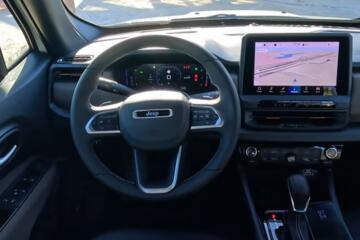
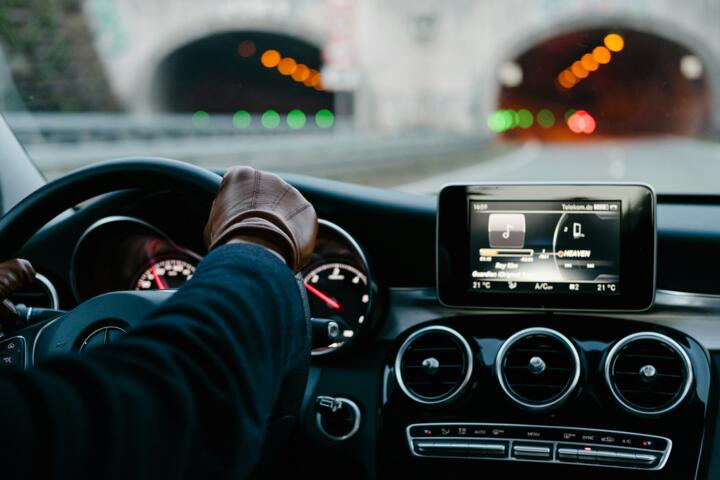
Touchscreens now handle climate, audio, and vehicle settings on many models, but the dashboard still has to work with gloves, glare, and distraction limits. A common design shift is adding physical controls back for high-frequency functions like defrost, volume, and hazard lights. In the US, the NHTSA has long emphasized driver distraction risk, and the agency’s crash data consistently shows attention matters during secondary tasks. In practice, vehicle type changes the control layout: a compact crossover with a single screen behaves differently than a truck with a tall center stack.
In 2022, the global automotive industry shipped about 80 million vehicles, and infotainment screens became a major part of the interior electronics package. That scale matters because even small usability issues repeat across millions of dashboards. Skip the fantasy that every menu tap is “quick.” It rarely is when traffic tightens.
Physical controls reduce the need to look away during routine tasks. A volume knob, for example, can be adjusted by feel in seconds, while a touchscreen volume slider often requires visual confirmation. Many modern systems also use layered menus, so the same setting may move locations after software updates. That behavior is tolerable for occasional features, but it becomes annoying for daily climate adjustments.
Vehicle type changes what “daily” means. A family SUV may need rear-seat climate changes, while a work truck may need quick trailer brake adjustments. Cabin layout also changes reach: a screen mounted high can be reachable for a driver, but it may be awkward for a passenger trying to change audio. A 10–12 inch screen can look large, yet the touch targets can still be small under polarized sunglasses.
Where the Touchscreen Hurts
People often assume touchscreen controls are faster because they look modern. They forget that touchscreens add a step: locate the icon, confirm the selection, then verify the result. That verification matters when the system changes multiple parameters at once, like switching defrost mode and fan speed together. In winter, a driver may need to clear the windshield in under 30 seconds, and menu navigation can slow that.
Skip the idea that “one screen” means one simple workflow. It usually means multiple pages, and the pages differ by drive mode. In real-world use, that leads to repeated glances at the center stack. A driver who changes temperature from 72°F to 68°F may still need to confirm the new setpoint, then check whether the system switched to recirculation.
Consequences show up as time loss and stress, not just annoyance. If a driver takes 2–3 extra seconds per adjustment and repeats it 10 times on a commute, that’s 20–30 seconds of extra visual demand. Over a year, that adds up. It also affects passenger experience: kids in the back can’t reach the screen, so the front passenger becomes the “control operator,” which adds distraction.
Financial consequences follow. When climate and audio controls are buried in software, repairs can involve more modules than a simple switch. A failed touchscreen digitizer or display can take down multiple functions at once, depending on the vehicle’s architecture. That can increase parts and labor time, even when the underlying issue is small.
Real-world situations make the problem obvious. A wet road spray can reduce touch accuracy, and a phone-like interface can misread touches when the driver’s hand is gloved. Bright sun creates glare, and the driver may need to adjust angle or wipe the glass. In parking lots, the hazard lights must be reachable instantly, and many designers learned that the touchscreen is not the right place for that.
Hybrid Controls: What to Do
Prioritize tactile climate
Choose vehicles that keep defrost and fan controls on physical buttons or knobs. It works because defrost is time-critical and the driver can operate it without looking. In practice, you should be able to hit front defrost and set fan speed while your eyes stay on the road. Look for dedicated buttons labeled with icons, not a buried climate page. If the system uses a knob for temperature, test it with the car in motion at low speed, then check whether the setpoint changes immediately.
Test the response time. It should feel instant, not delayed by a menu transition.
Use knobs for volume
Pick dashboards where volume and tuning are physical. It works because audio adjustments happen constantly, and tactile feedback reduces mis-taps. In practice, a volume knob should cover the full range without stepping through multiple screens. If the vehicle uses a touchscreen for audio, check whether there’s a physical “home” button and a physical “back” button. A system that forces you into a deep media menu for basic volume is a daily annoyance.
Ask the dealer to demonstrate while you drive slowly. Watch how many taps it takes.
Check driver-assist shortcuts
Verify that lane-keeping, adaptive cruise, and collision warning settings have direct access. It works because these controls affect how the car behaves in traffic, and the driver needs predictable changes. In practice, you want a steering-wheel button cluster or a stalk for cruise, plus a clear way to adjust following distance. If the vehicle hides those settings in a submenu, you may spend time hunting while traffic changes. For example, some systems require entering a “vehicle” screen, then selecting “driver assist,” then choosing a profile.
Skip the profile-only approach. It adds steps when you need changes now.
Map the screen layout
Evaluate how the touchscreen is organized across common tasks: navigation, phone, climate, and vehicle settings. It works because the same icon can move after software updates, and the learning curve resets. In practice, you should be able to reach the home screen, then return to audio in under 10 seconds. A quick check is to ask the vehicle to show a “now playing” screen and then try to change stations without reading labels. If the system uses small touch targets, glare, or thick bezel reflections, you’ll feel it during the test drive.
Bring polarized sunglasses. They reveal touch-target problems fast.
Plan for software updates
Confirm how the vehicle handles infotainment updates and whether they change control behavior. It works because touchscreen-heavy systems depend on software, and updates can alter menu depth or default pages. In practice, ask what the update process looks like: over-the-air versus dealer service, and how long the system is unavailable. Some vehicles require a reboot after updates, which can reset radio presets and climate shortcuts. If you rely on saved driver profiles, check whether those profiles store climate and assist settings.
Look for a warranty term on infotainment components. It varies by model and region.
Understand repair pathways
Ask about the parts and labor path for touchscreen failures. It works because a broken display can disable multiple functions if the architecture routes audio and climate through the same head unit. In practice, a digitizer replacement may require recalibration, and the labor time can be higher than replacing a single switch. For ownership planning, request typical repair times from the service department and whether they stock the module. If the vehicle uses a separate climate control module, repairs may stay localized.
Expect higher labor hours for integrated screens. The wiring harness and calibration add time.
Don’t ignore physical reach
Check cabin practicality: where your hand lands for knobs and buttons, and whether the center stack blocks arm movement. It works because physical controls only help if they’re reachable without awkward posture. In practice, sit in the driver seat, set the steering wheel, and try to operate volume and defrost with your wrist at a natural angle. For child-seat compatibility, confirm that the front passenger can access rear climate controls if the vehicle offers them, since back-seat passengers can’t reach the screen. In SUVs, the rear HVAC controls are often physical, but some models route them through the main display.
Measure reach with your own hand. If you stretch, you’ll avoid using it.
Mini Case: Fleet Manager
A regional delivery company replaced older vans with new models that used a large touchscreen for most cabin functions. Drivers complained about windshield clearing delays and repeated menu taps for fan speed, especially in early morning fog. The company tracked incidents using internal reports and found that “missed defrost” complaints clustered during the first 15 minutes of routes. They switched to a trim level that added physical defrost and fan controls, plus a volume knob.
After the change, the number of driver-reported “can’t find the setting” events dropped by about 40% over two months. The company also reduced time spent on roadside comfort adjustments, estimating a savings of roughly 1–2 minutes per shift. That sounds small, but across 30 vans it added up. The fleet manager also noted fewer complaints about glare and wet-glove touch errors.
Skip the assumption that software training fixes it. Drivers still need tactile access when hands are cold.
Mini Case: Family SUV
A family bought a mid-size SUV with a touchscreen-heavy climate interface and used it for weekend trips. On a 180-mile drive, they adjusted temperature multiple times as the cabin warmed, and the system required several taps to change fan speed. The family also used rear-seat climate controls, which were tied to the main screen. After a software update, the climate layout changed slightly, and the driver had to relearn where the fan control lived.
They traded the SUV for a model with physical fan and defrost controls and a temperature knob. Over the next 90 days, they reported fewer “wrong setting” moments and faster windshield clearing during rain. The ownership cost difference came from warranty coverage: the newer model’s climate controls were split between physical switches and the head unit, so a head-unit issue didn’t always disable climate. Exact repair costs vary, but the parts scope was narrower in the second vehicle.
Resale value also shifted. Buyers often pay more for trims with simpler, tactile controls, especially when used-car shoppers test quickly.
Checklist for Your Test Drive
| Check | What to look for | Why it matters | Pass/fail test |
|---|---|---|---|
| Defrost access | Dedicated button or knob | Fast windshield clearing | Turn it on without looking |
| Volume control | Physical knob or buttons | Frequent adjustments | Change volume in 5 seconds |
| Assist settings | Steering-wheel or stalk shortcuts | Predictable behavior changes | Adjust following distance quickly |
| Glare and wet touch | Large, high-contrast UI | Reduced mis-taps | Test with sunglasses |
| Update behavior | OTA updates and reset notes | Avoid surprises | Ask what changes after updates |
| Repair scope | Separate modules when possible | Lower downtime | Ask about typical repair time |
Common Mistakes and Fixes
Buying based on screen size alone is a trap. Bigger displays can still hide controls behind multiple layers, and touch targets may shrink. The impact shows up as longer setup time for navigation and climate. Avoid it by timing how long it takes to reach defrost and volume from the home screen.
Skip the “I’ll just use voice commands” plan. Voice systems can mishear in wind noise, and they still require confirmation. The impact is extra back-and-forth, which increases distraction. Avoid it by testing voice in the dealership lot with the radio on at normal volume.
Choosing a trim level without physical hazards is another mistake. Hazard access must be immediate, and some vehicles place it behind the touchscreen in certain modes. The impact is stress during emergencies and parking maneuvers. Avoid it by checking the hazard button location with your eyes forward, then verifying it works even when the infotainment is rebooting.
Ignoring update behavior can cost time. Some infotainment updates change menu layouts, and saved shortcuts may reset. The impact is relearning controls mid-ownership, which is annoying on road trips. Avoid it by asking whether the system supports over-the-air updates and whether it logs changes in the owner app.
Overlooking reach and posture is common. A center stack that forces you to lean can make physical controls feel slower than a touchscreen. The impact is that you stop using the controls you need most. Avoid it by adjusting the seat and steering wheel, then operating volume and defrost with your normal wrist angle.
FAQ
Why are automakers adding buttons again?
Physical controls return because certain tasks repeat constantly and need tactile feedback. Defrost, fan speed, volume, and hazard lights are common examples where drivers benefit from operating without looking. Touchscreens can work well for navigation and media browsing, but layered menus add steps for time-sensitive actions. Safety research and crash investigations have repeatedly linked distraction to secondary tasks, so designers try to reduce the number of glances required for routine settings.
Do physical controls reduce fuel or battery range?
In most cases, the control method does not change fuel economy or battery range directly. Fuel and range depend on powertrain efficiency, driving speed, HVAC load, tire pressure, and aerodynamics. However, physical climate controls can indirectly help because faster windshield clearing can reduce the temptation to run high fan settings longer than needed. If a touchscreen interface makes it harder to fine-tune temperature, drivers may leave HVAC running at higher output. That can raise energy use, especially in cold weather.
Are touchscreen failures more expensive than switch failures?
Often, yes, because a touchscreen head unit can integrate multiple functions. If the display or digitizer fails, the repair may involve replacing the screen module and sometimes reprogramming or calibration. A failed physical switch usually stays localized, though labor time can still be high depending on access. The best approach is to ask the service department what components are replaced for a known failure mode on the specific model year, and whether parts are stocked. Warranty coverage can also change the out-of-pocket cost.
What should I test for with kids in the car?
Check rear-seat control access and child-seat practicality. If rear climate controls are touchscreen-only, the front passenger may need to operate them, which adds distraction. Look for physical rear HVAC controls, or at least a simple screen layout with large touch targets. Also verify that the front passenger can reach the controls without blocking child-seat installation. For road trips, confirm that rear passengers can adjust airflow without the driver taking hands off the wheel.
How do I judge usability without reading menus?
Use a timed test during the drive. Start from the home screen, then change defrost on, adjust fan speed, and set temperature to a new value. Do the same for volume and one driver-assist setting like following distance. If you need more than a few glances to find the right icon, the system likely relies on learning rather than instinct. A quick aside: glare and wet hands change touch accuracy, so test with sunglasses and a damp hand if the dealership allows it.
Author's Insight
Dashboard control design is a human-factors problem, not a screen-size problem. When climate and assist settings live behind nested menus, the driver’s eyes leave the road more often, and that shows up as stress in bad weather. Physical controls reduce that glance count, but they also shift complexity into the vehicle’s hardware layout and wiring. The most practical approach is a hybrid: tactile access for high-frequency, time-sensitive tasks, and touchscreen depth for low-frequency settings.
In my synthesis of common service patterns, integrated infotainment modules tend to create broader downtime when they fail. That doesn’t mean touchscreens are unreliable; it means the repair scope can be larger. If you’re shopping, treat the control layout like you treat warranty coverage—check what breaks, what gets replaced, and how long the car sits in the shop.
Key Points
Physical controls are returning because certain actions need tactile feedback, predictable placement, and fast response under glare, gloves, and wet hands. Touchscreens still work well for navigation, media, and deeper vehicle settings, but they add steps for routine tasks like defrost and volume. Your next step is a test-drive checklist: operate defrost, volume, and one driver-assist setting without relying on reading the screen. If the vehicle forces multiple menu taps, choose a trim with physical shortcuts or a different layout.
Limits exist. A hybrid layout can still suffer from small touch targets for secondary functions, and software updates can change screen organization. If you notice persistent mis-taps, delayed climate response, or repeated infotainment freezes, document the behavior and ask the dealer about warranty coverage and known fixes. Seek professional help if the issue affects safety-critical functions like defrost performance or driver-assist behavior.